
Overview
The Workflow
Six steps from sign-up to review.
Sign up in seconds
Sign up with email or Google. One account covers both client and business roles. Add the second one whenever you're ready.
Add your details
Enter your contact information, preferred communication method, and your location so tradies can find jobs near them.
Set up your business
Add your ABN, business details, service categories, portfolio images, and define your service areas on the map.
Post a job for free
Describe the work, search for the right trade or specialty (or let AI pick), choose public or private, add your suburb, and upload photos. Posting jobs is always free for clients.
Choose a subscription plan
Select a plan that fits your business. Your plan determines how many trades, images, and service areas you can list. Browse jobs and receive quote requests.
Browse & request quotes
Search the map, filter by category, and send quote requests to up to 5 businesses per batch. Or turn on auto-recommend and we'll line up matching tradies for you.
Browse jobs & get noticed
Browse available jobs in your area and service categories. When a client requests a quote from you, you'll be notified instantly.
Choose your tradie
Compare portfolios and reviews, then send a quote request. That unlocks the tradie's contact details so you can reach out directly. No middleman.
Respond & win the work
Open the quote request, check the job scope and photos, then contact the client directly. No lead fees.
Leave a review
After the job, rate your tradie on overall experience, communication, quality, and value. Your honest feedback helps the whole community.
Build your reputation
Great reviews boost your visibility and attract more clients. Unfair review? You can dispute it for moderation. Your rating is your best marketing tool.
For Everyone
Getting Started
One login works for both client and business roles.
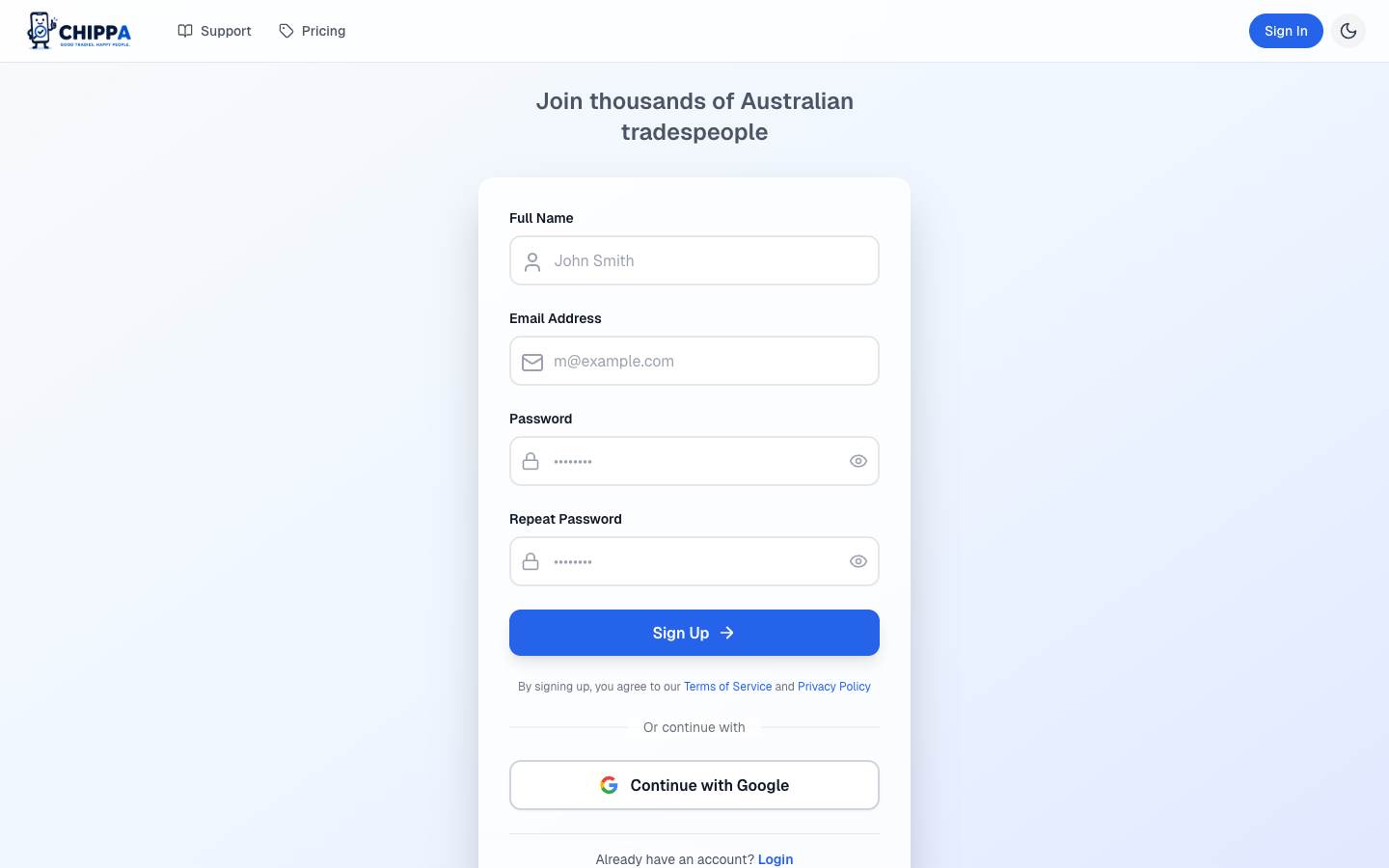
1. Sign up
Register with email and password, or use Google. Email sign-ups get a 6-digit verification code by email. Enter the code to activate your account.
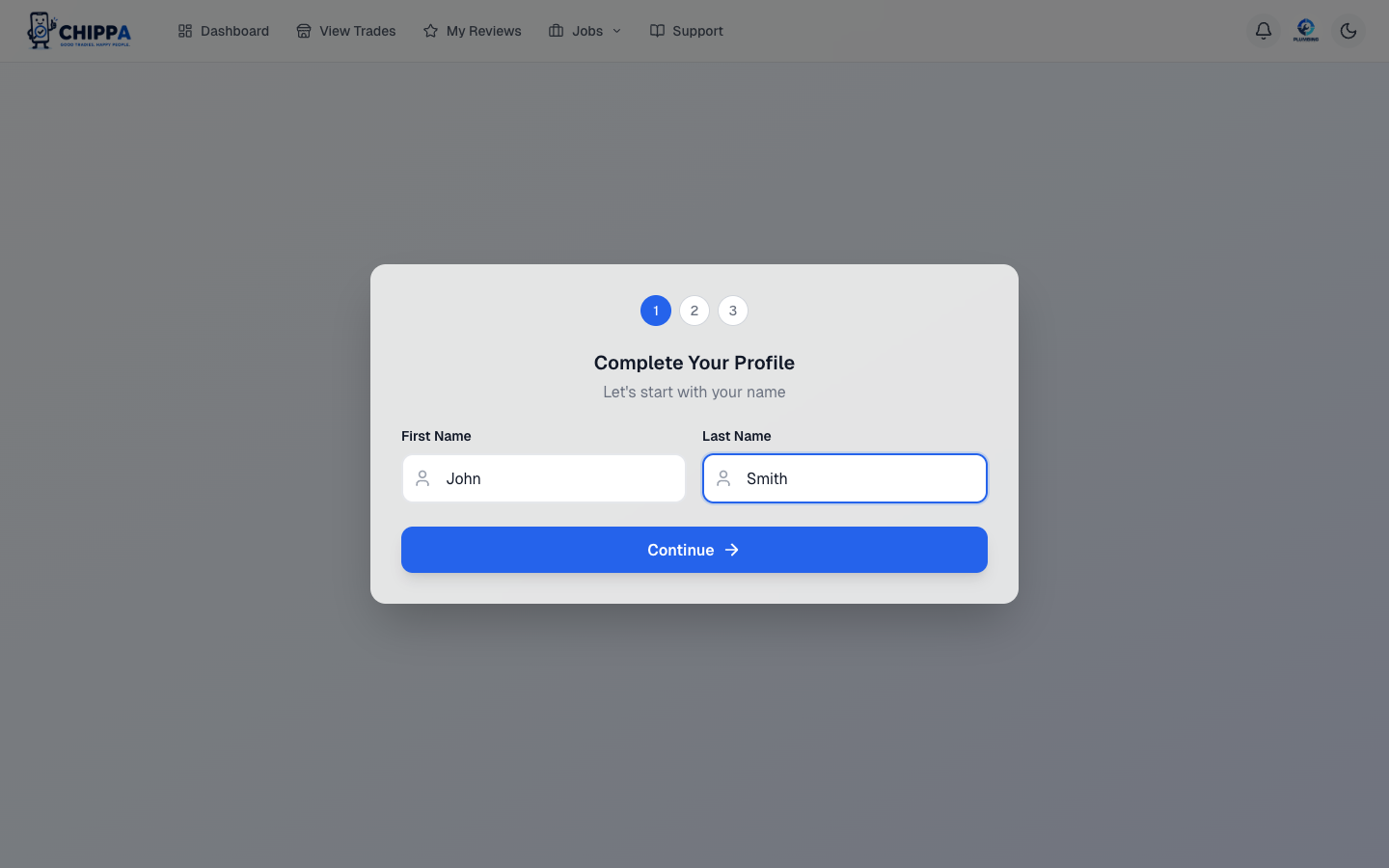
2. Complete your profile
A short wizard runs the first time you sign in. Start with your name.
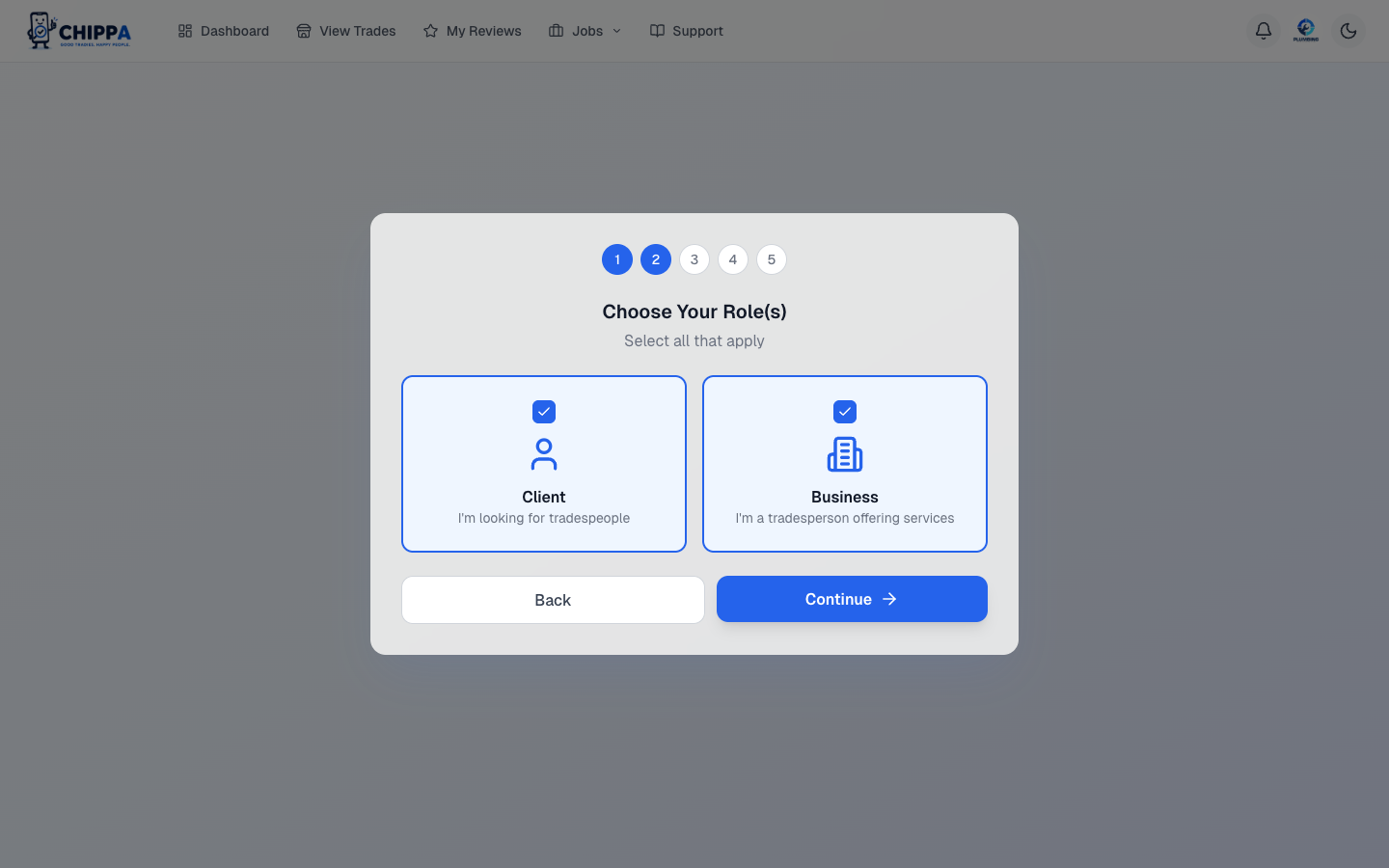
Pick your role. Clientif you're hiring tradies, Businessif you're offering services, or both. The wizard adds the steps for each role you pick.
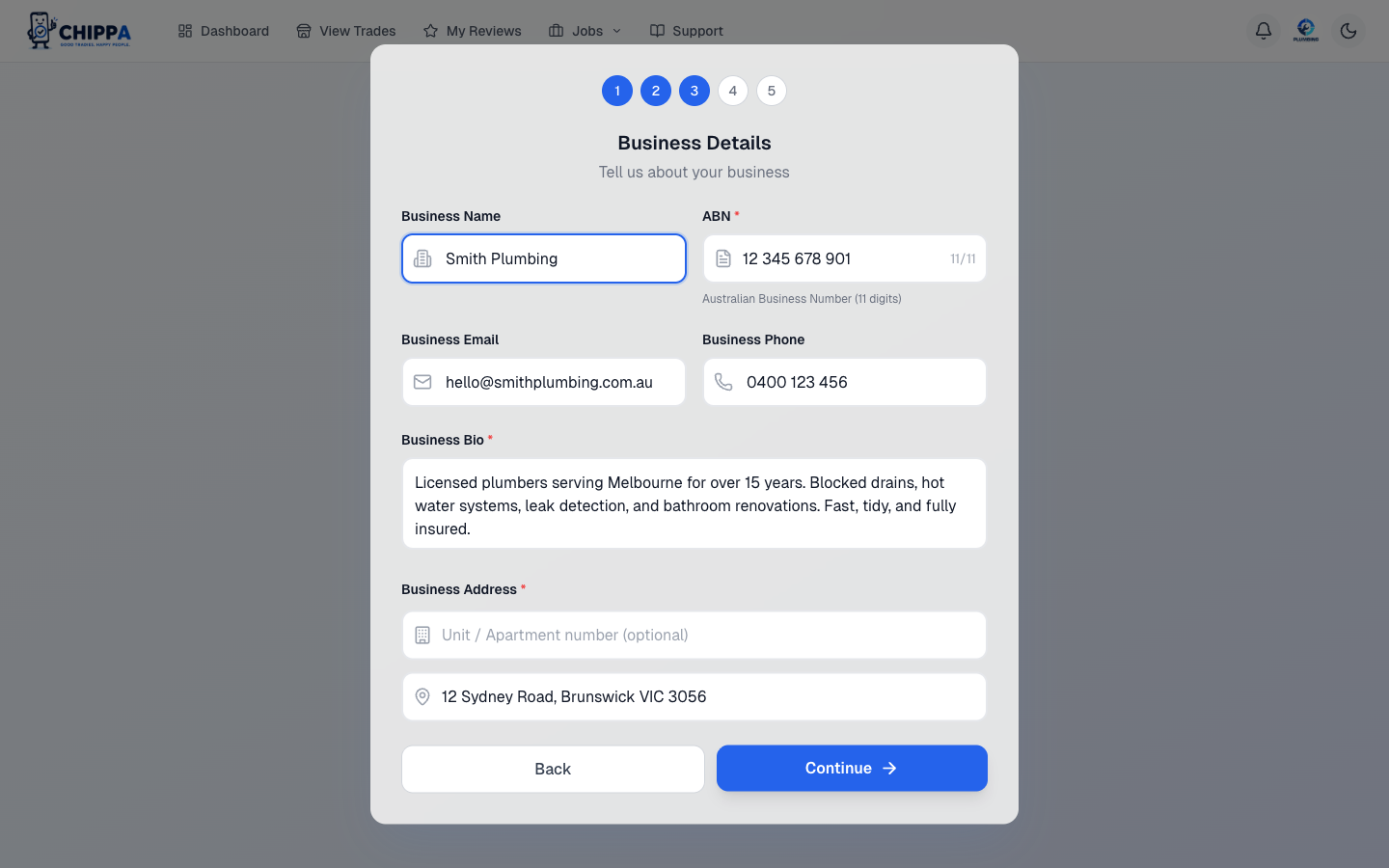
Business setup asks for your business name, ABN, contact details, short bio, and address (use the autocomplete).
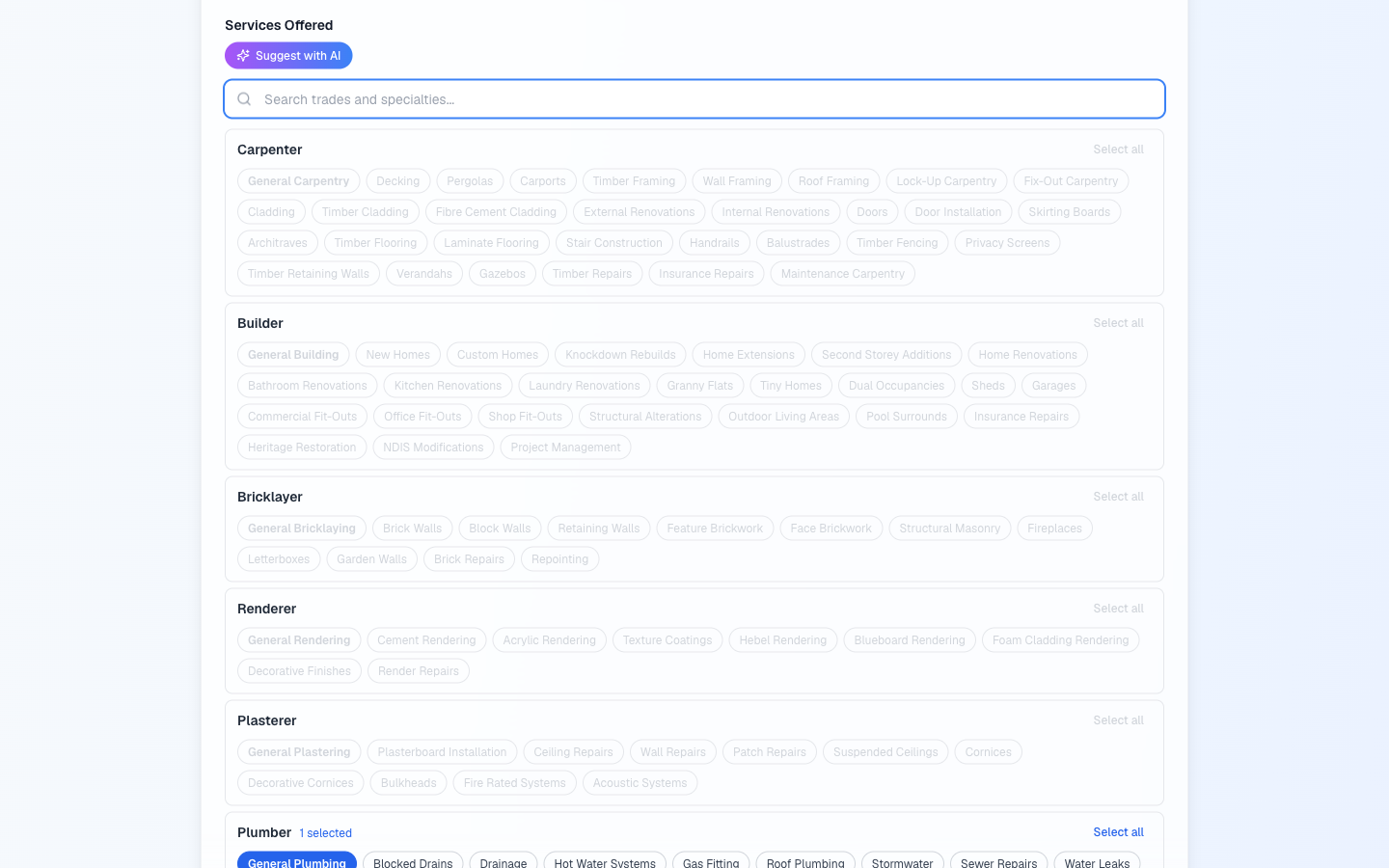
Then pick the services you offer. Search for a trade (like Electrician) and add the whole trade, or expand it and pick just the specialties you do. Your plan sets how many trades you can list. Every specialty within a trade you pick is included, so adding a whole trade only counts as one.
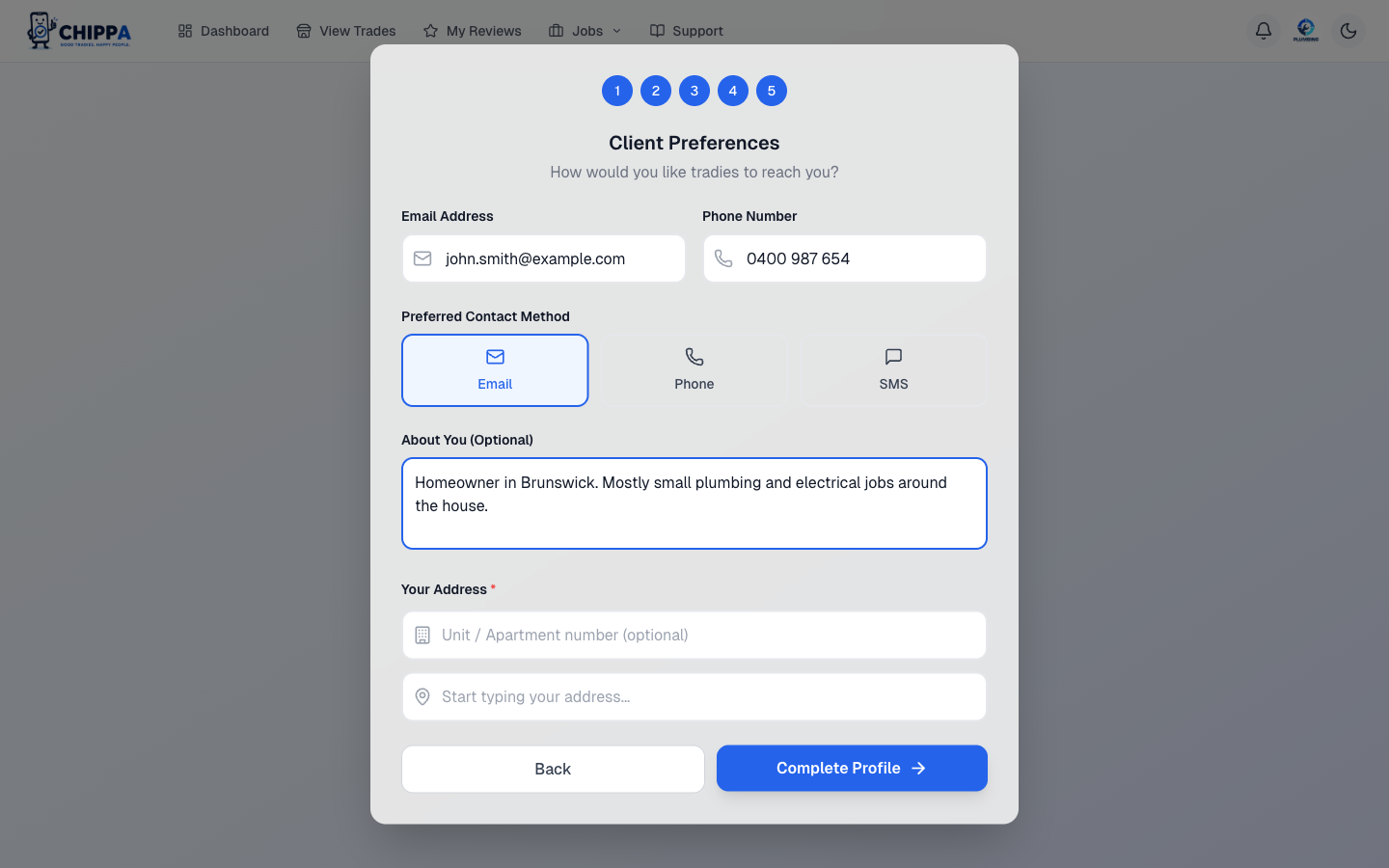
Client setup asks for your contact preferences, an optional bio, and your address so local tradies can find you.
3. Adding a second role later
Open Profile Settings and click Add Business Role or Add Client Role. Fill in the missing details and you're done. The role appears as a portal option in your avatar menu.
Client Guide
For Clients
Find tradies, request quotes, leave reviews. Free.
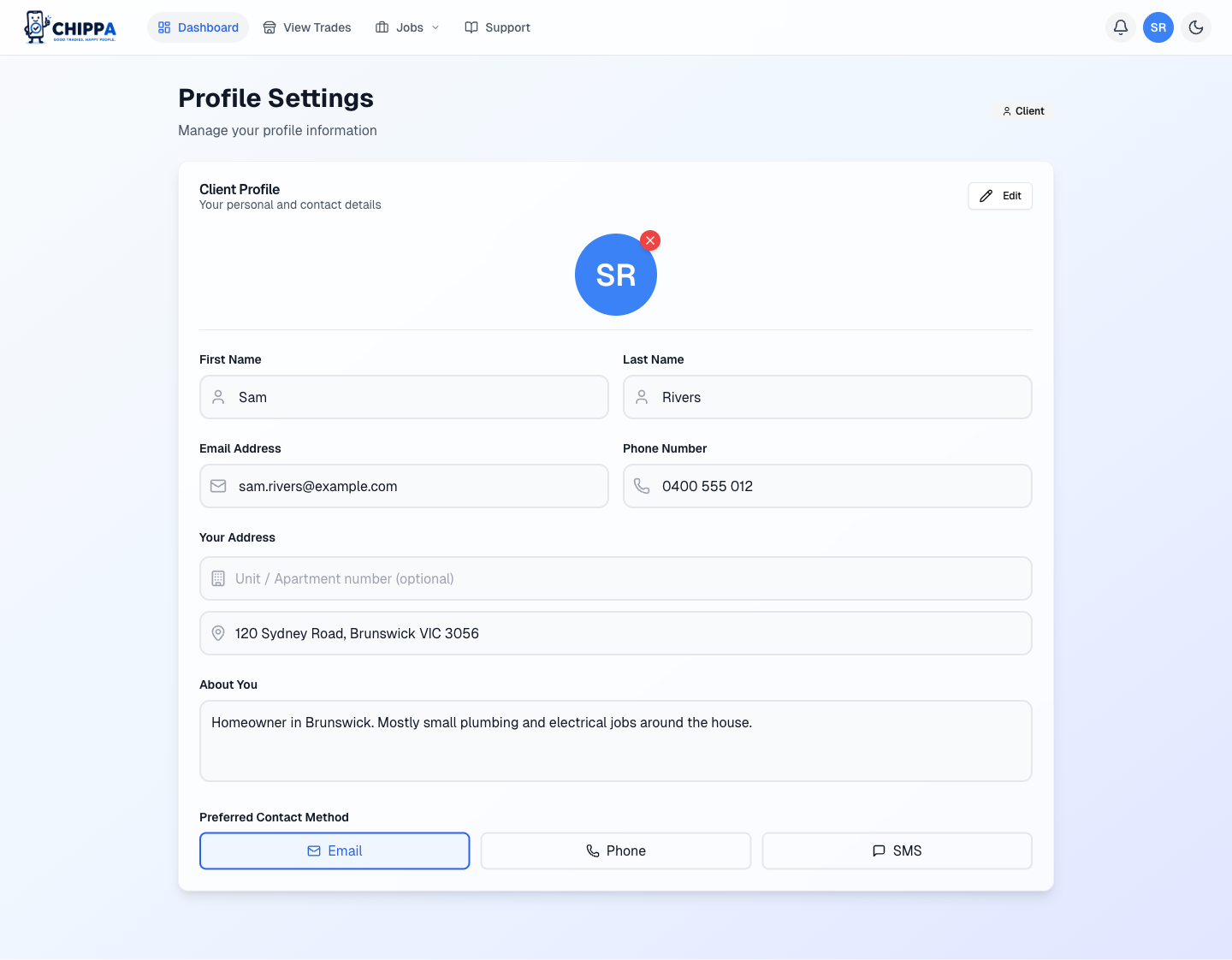
Your client profile
Open Profile Settingsto manage your name, contact details, address, and how you'd like tradies to reach you. Keep your suburb current so local tradies show up when you post a job.
Posting a job
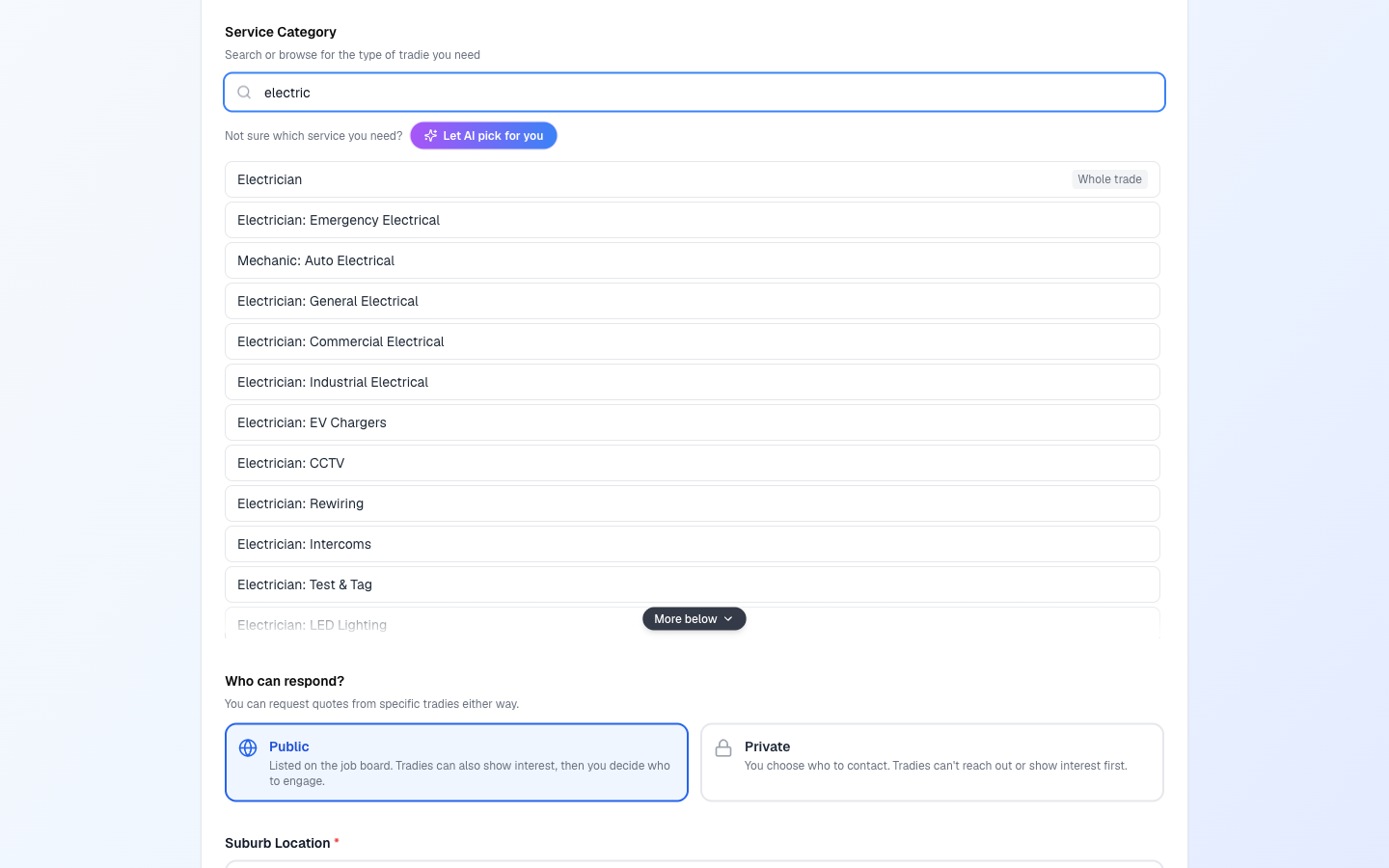
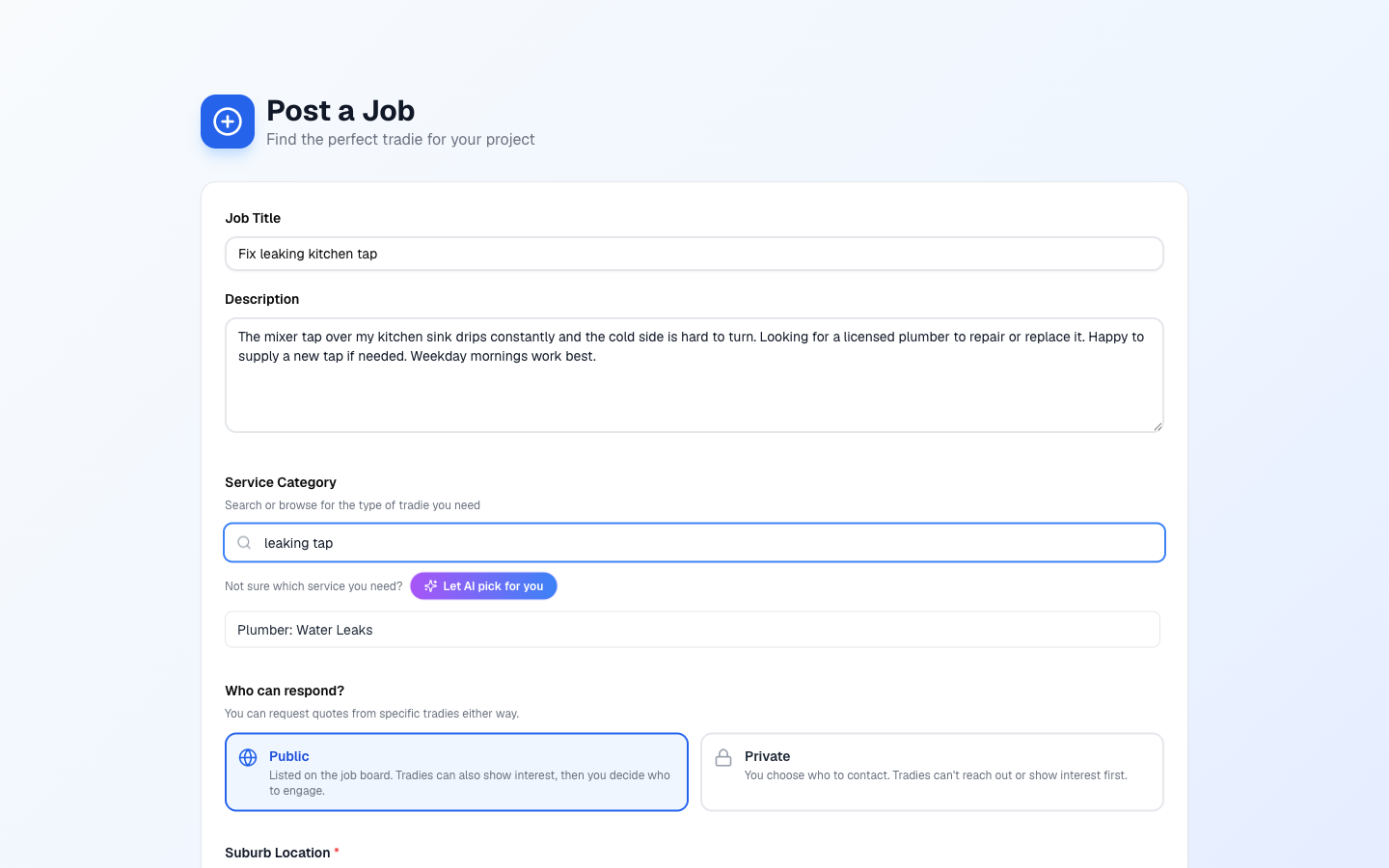
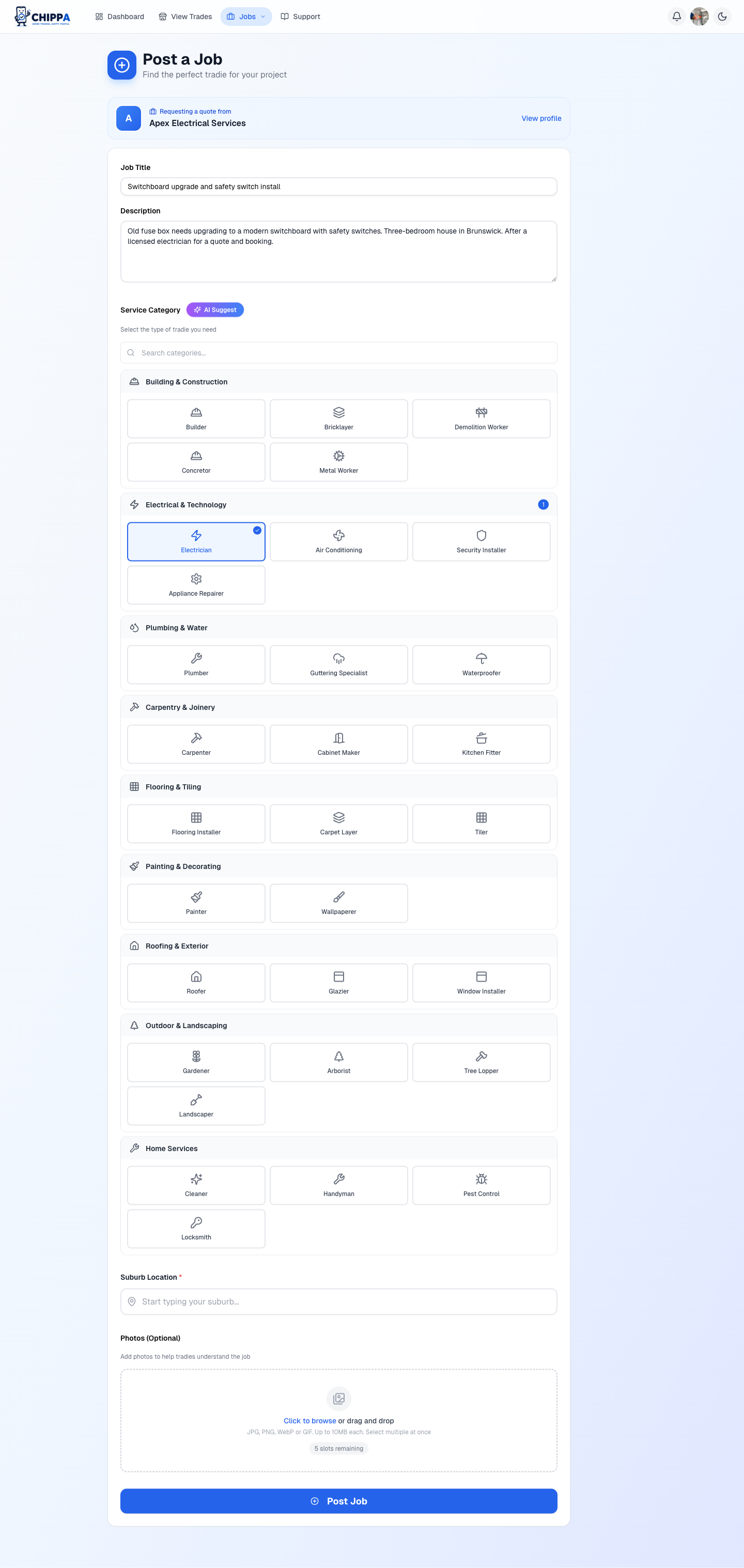
Click Post a Job from the home page or your dashboard. Describe the work, choose the service, set who can see it, add your suburb, and upload photos if you have them.
Picking the service is search-first. Type what you need, such as "sparky", "leaking tap", or "EV charger", and matching trades and specialties come up as you type. Pick a whole trade ("I need an electrician") or one specific specialty. Not sure? Tap Let AI pick for you and it reads your description and suggests the best match.
Public vs private jobs
Every job is either Public or Private. You choose when you post, and Public is the default.
- Public. Your job is listed on the job board and matching tradies can raise their hand by expressing interest. You see who's interested and can request a quote from them (see Interested tradies below).
- Private.Your job still appears on the board so tradies know the work exists, but they can't act on it. Only you start contact, by requesting quotes.
Either way, a tradie never sees your contact details until you send them a quote request. Interest alone never unlocks your details.
Browsing tradies on the map
View Trades shows businesses on an interactive map. Pan and zoom to update the list. Filter by category or search by name.
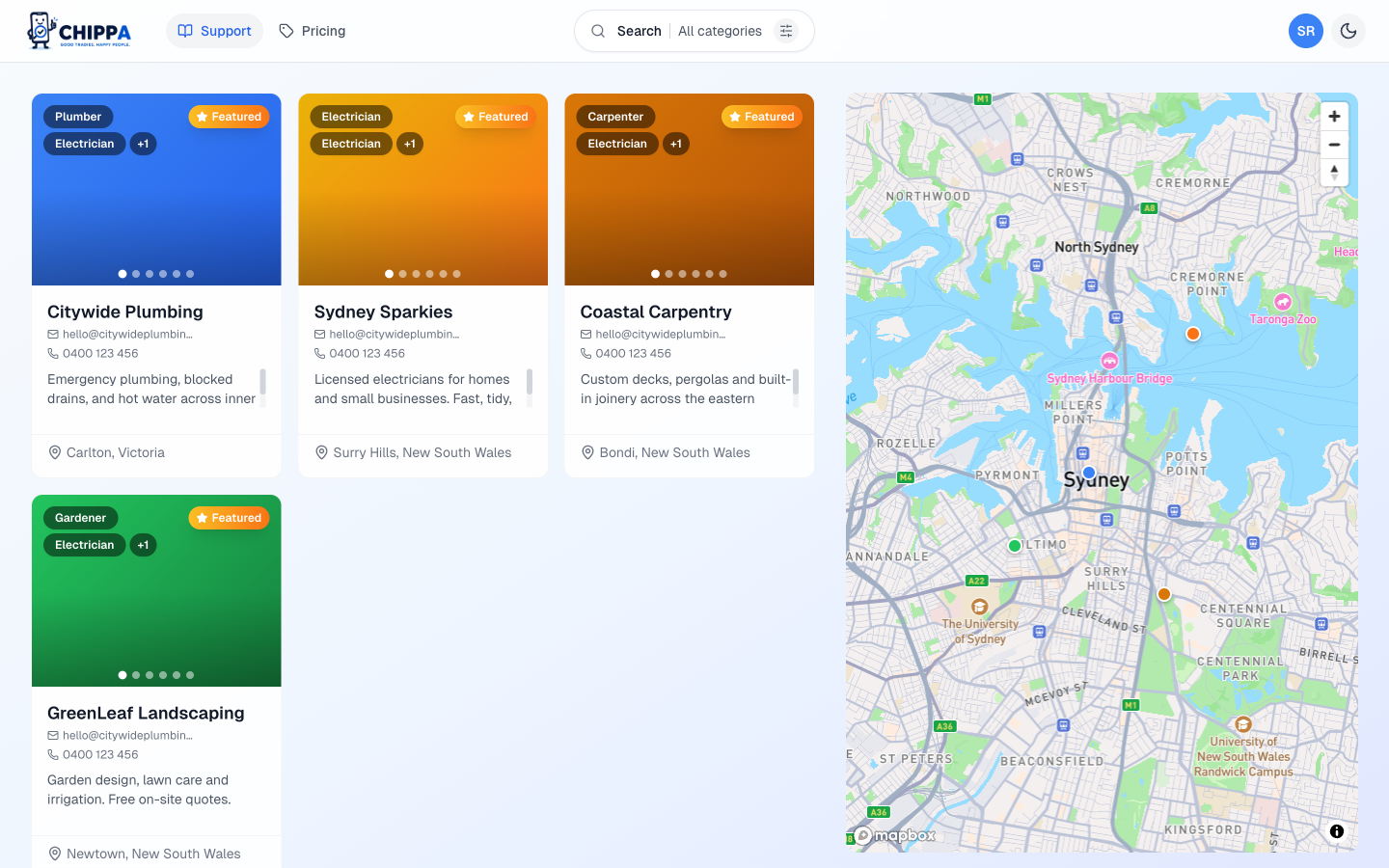
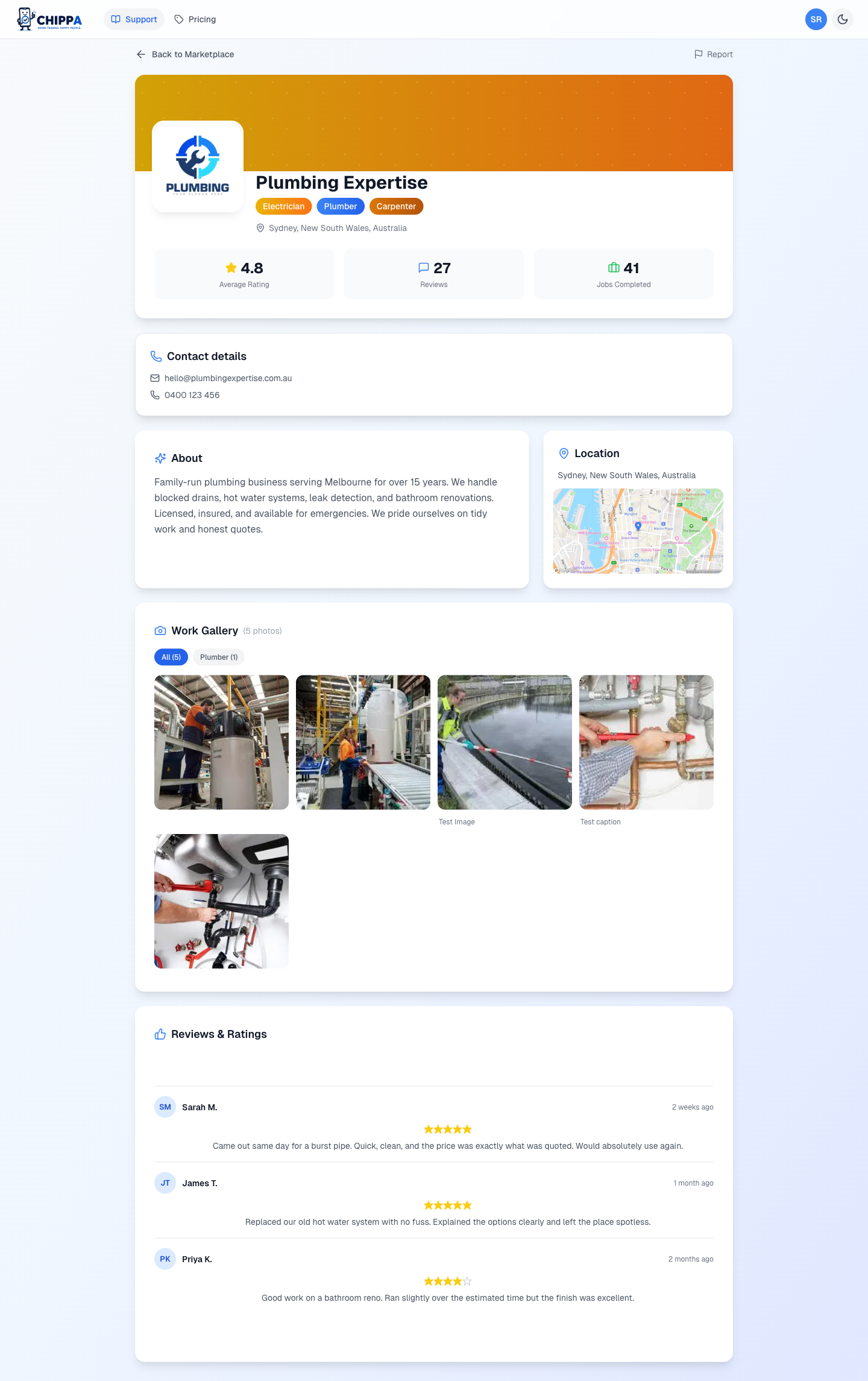
Click any business for their full profile: gallery, ratings, reviews, and a Request a Quote button that starts a new job pre-attached to that tradie (see Requesting quotesbelow). Contact details unlock once you've sent them a quote request on one of your jobs.
Tracking your jobs
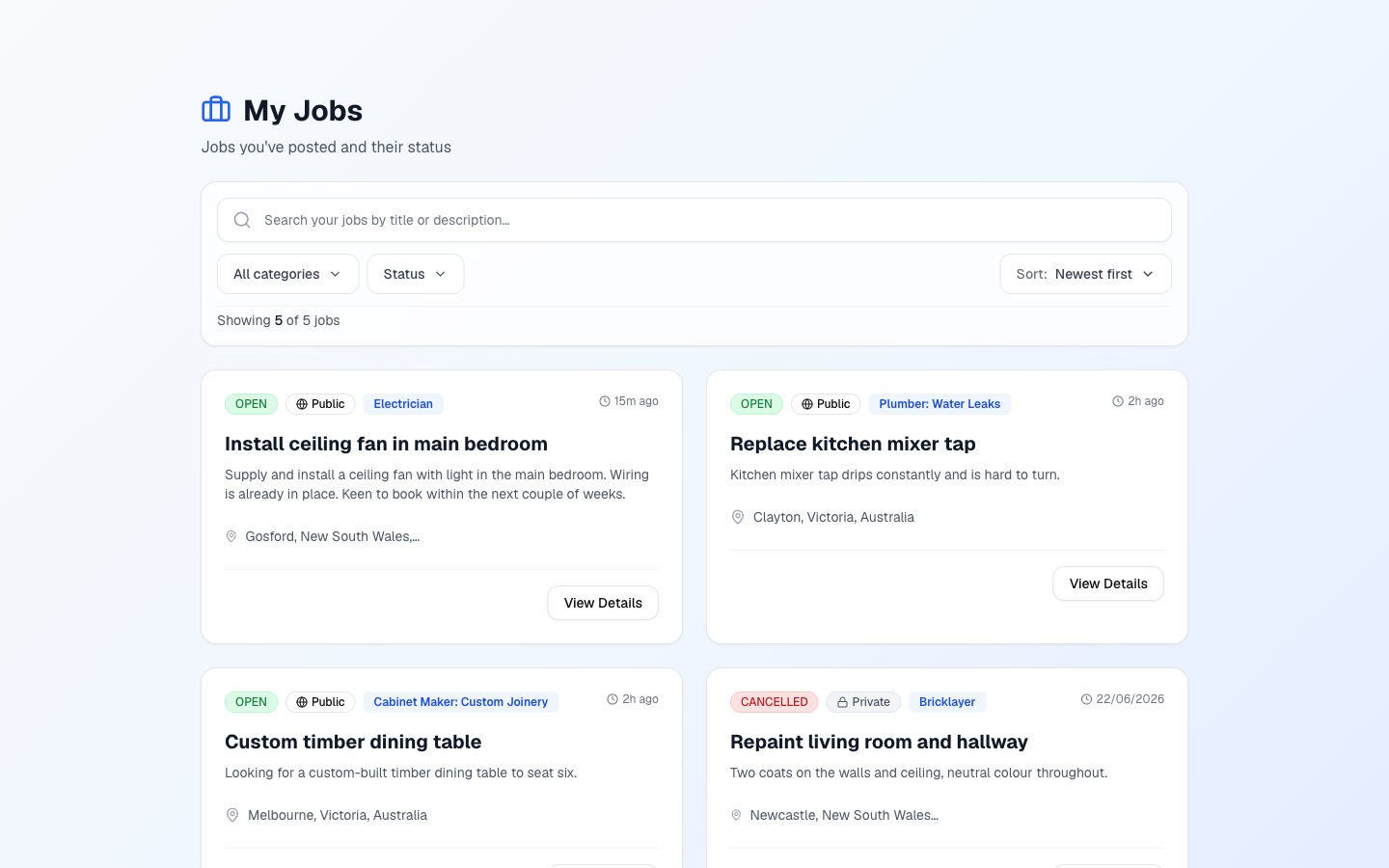
My Jobslists every job you've posted with its status. Click a job to see quote requests and manage them.
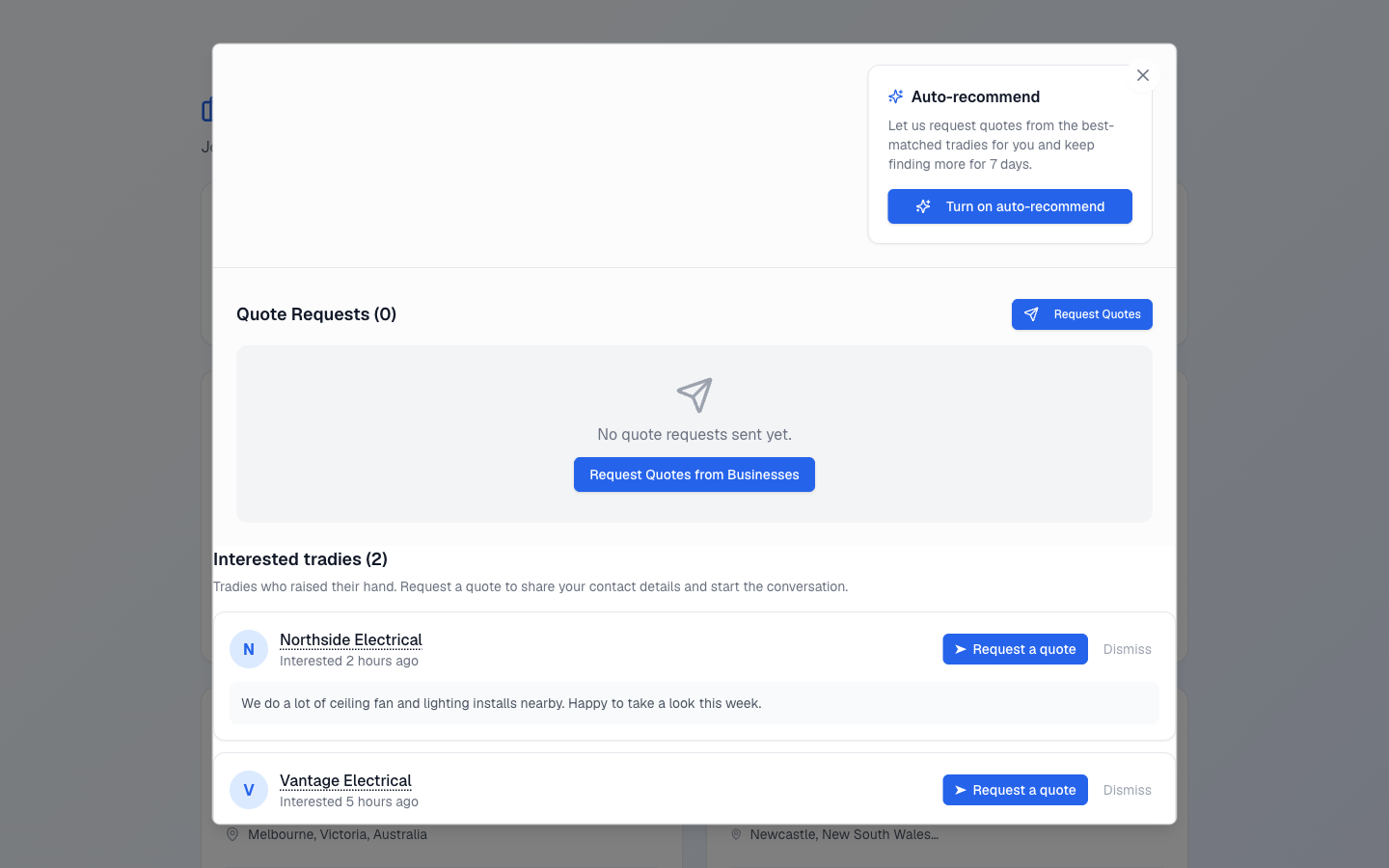
Interested tradies
On a Publicjob, tradies who think they're a good fit can express interest, often with a short note about why. Open the job to see the list.
Interest is just a heads-up. It doesn't share your contact details and it doesn't commit you to anything. When someone looks right, request a quote from them and the normal flow takes over. Not interested? Dismiss them to tidy the list. Other tradies never see who else raised their hand.
Requesting quotes
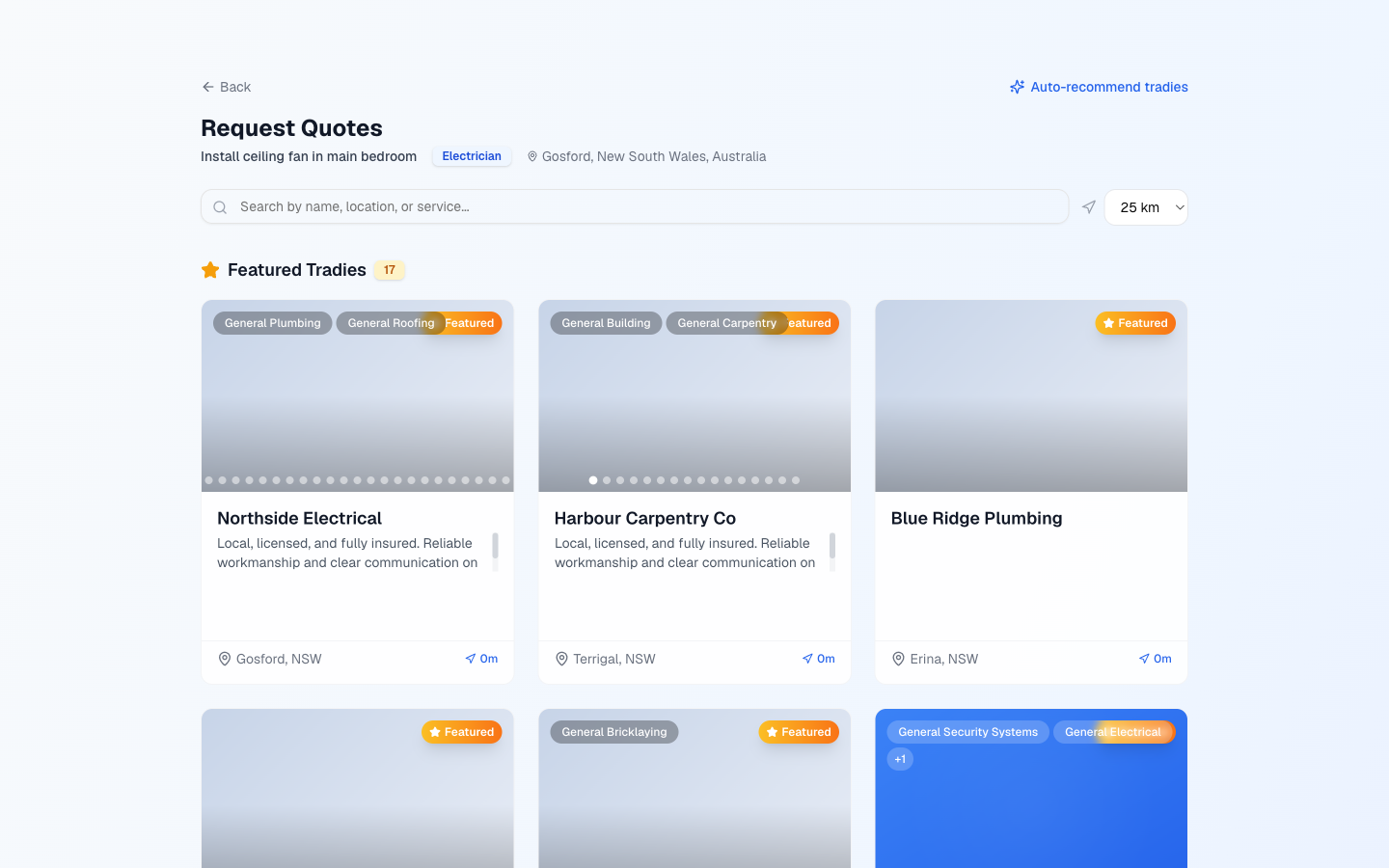
Two ways to send a quote request:
- From a job. Open the job, click Request Quotes, pick up to 5 matching tradies, add an optional message, send.
- From a business profile. Click Request a Quoteon a tradie's page (or in the marketplace). This drops you straight into the job form with that business already attached. Describe the job and post it. The request goes to that tradie the moment the job is created.
Hit the cap of 5 per batch? Come back and send another batch. There's a fair-use limit of 20 manual requests per job over any 7 days. If you reach it, we tell you when the next slot frees up.
Auto-recommend tradies
Don't want to hand-pick? Turn on Auto-recommend for a job and we line up matching tradies for you, ranked by rating and distance, and send them a quote request on your behalf.
- We recommend a few new tradies every few days across a 7-day window, so you keep getting fresh options.
- Each round goes to tradies you haven't contacted yet, even if earlier ones have already replied.
- After 7 days it pauses and we email you so you can turn it back on.
You can enable it from the request-quotes screen with Skip and auto-recommend, or tick Also auto-recommend a few new tradies over the next 7 days when you send a batch.
Leaving a review
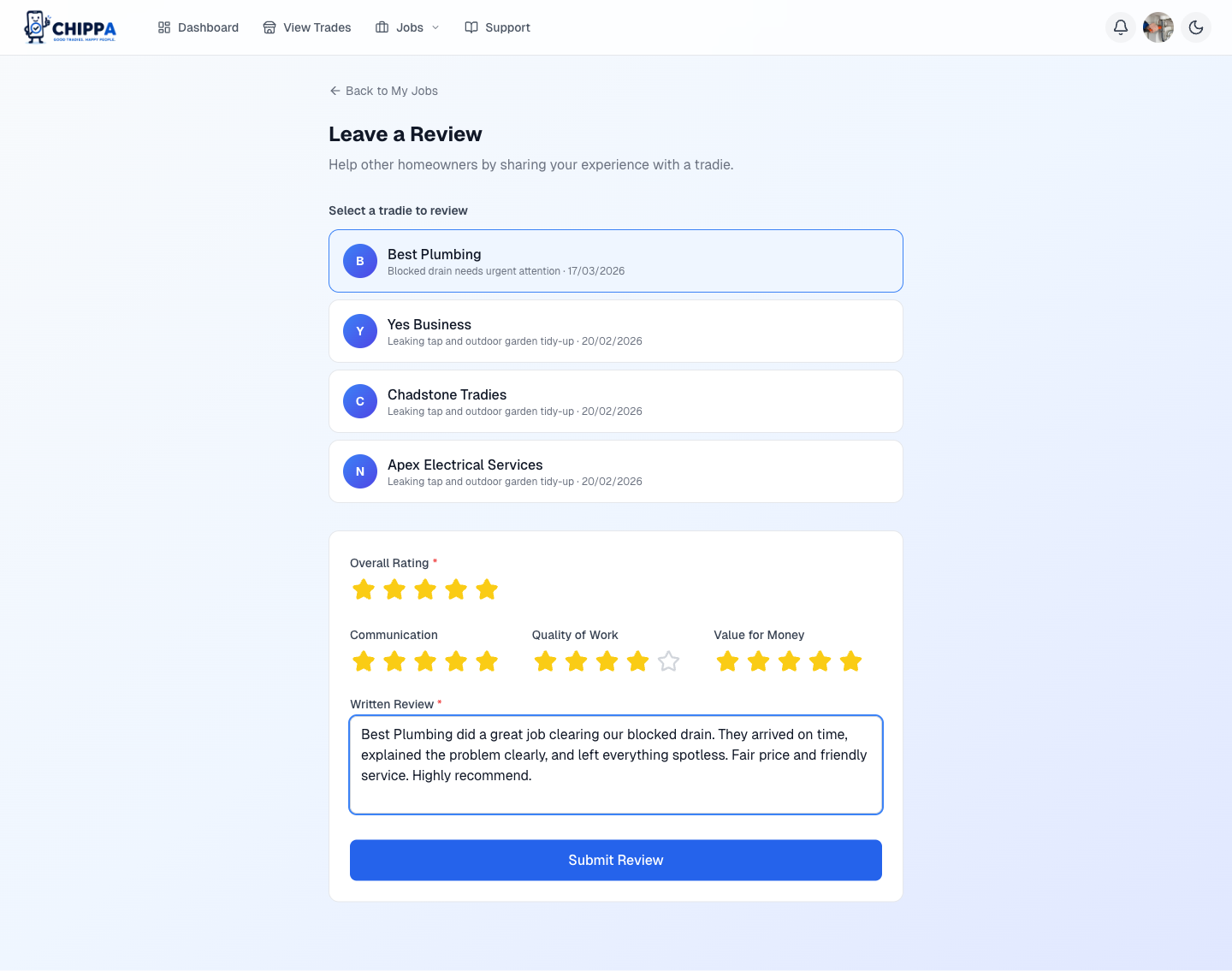
After the job, open Leave a Review. Rate overall experience, communication, quality, and value. Reviews under 3 stars sit in moderation for 14 days so the business has a chance to dispute.
Business Guide
For Businesses
Set up, win quotes, build your reputation.
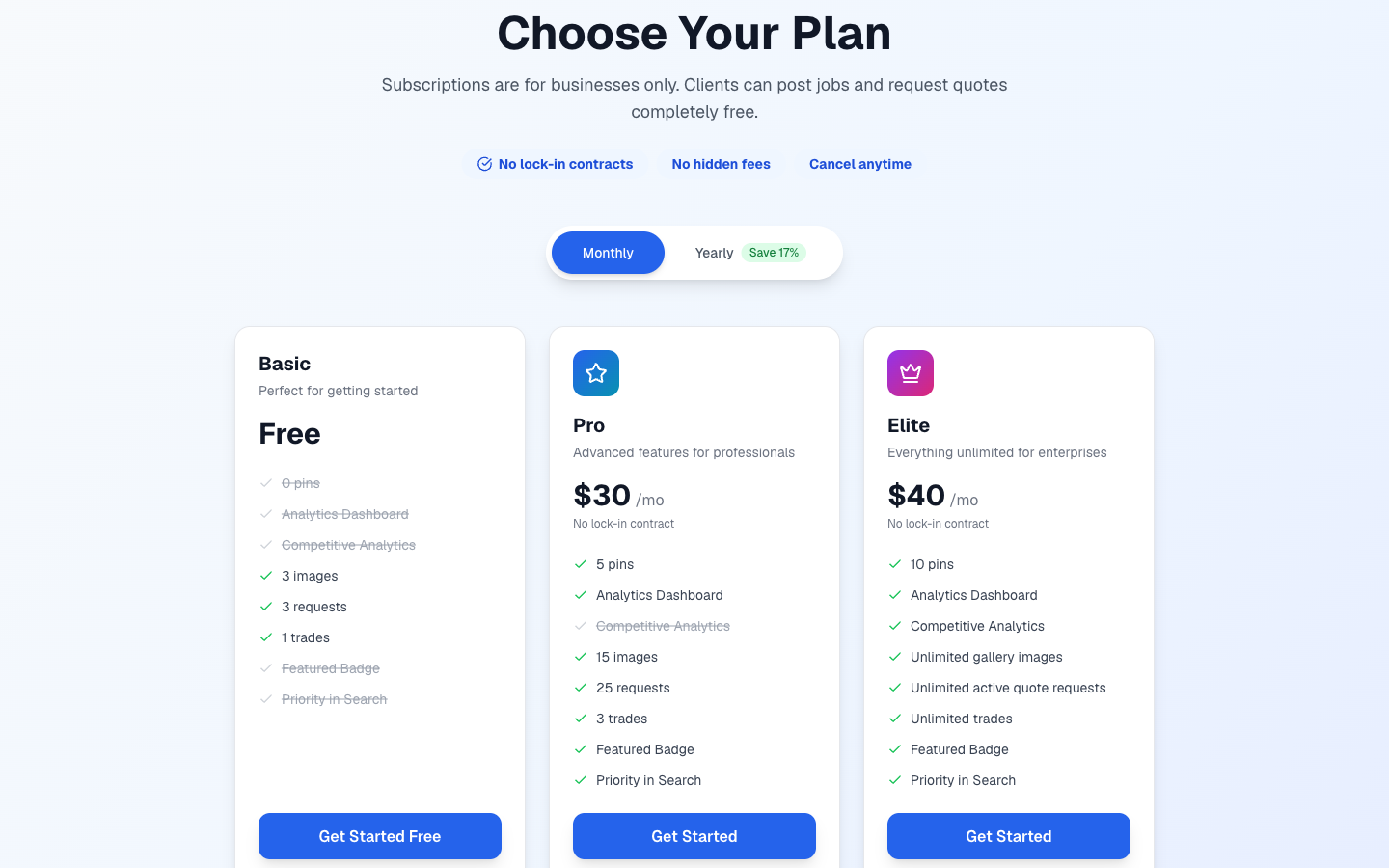
Choosing a subscription plan
A subscription unlocks the job board and lets you receive quote requests. Higher tiers raise your limits on trades, gallery images, and service areas. The trade limit counts whole trades, not individual specialties, so every specialty inside a trade you list is included.
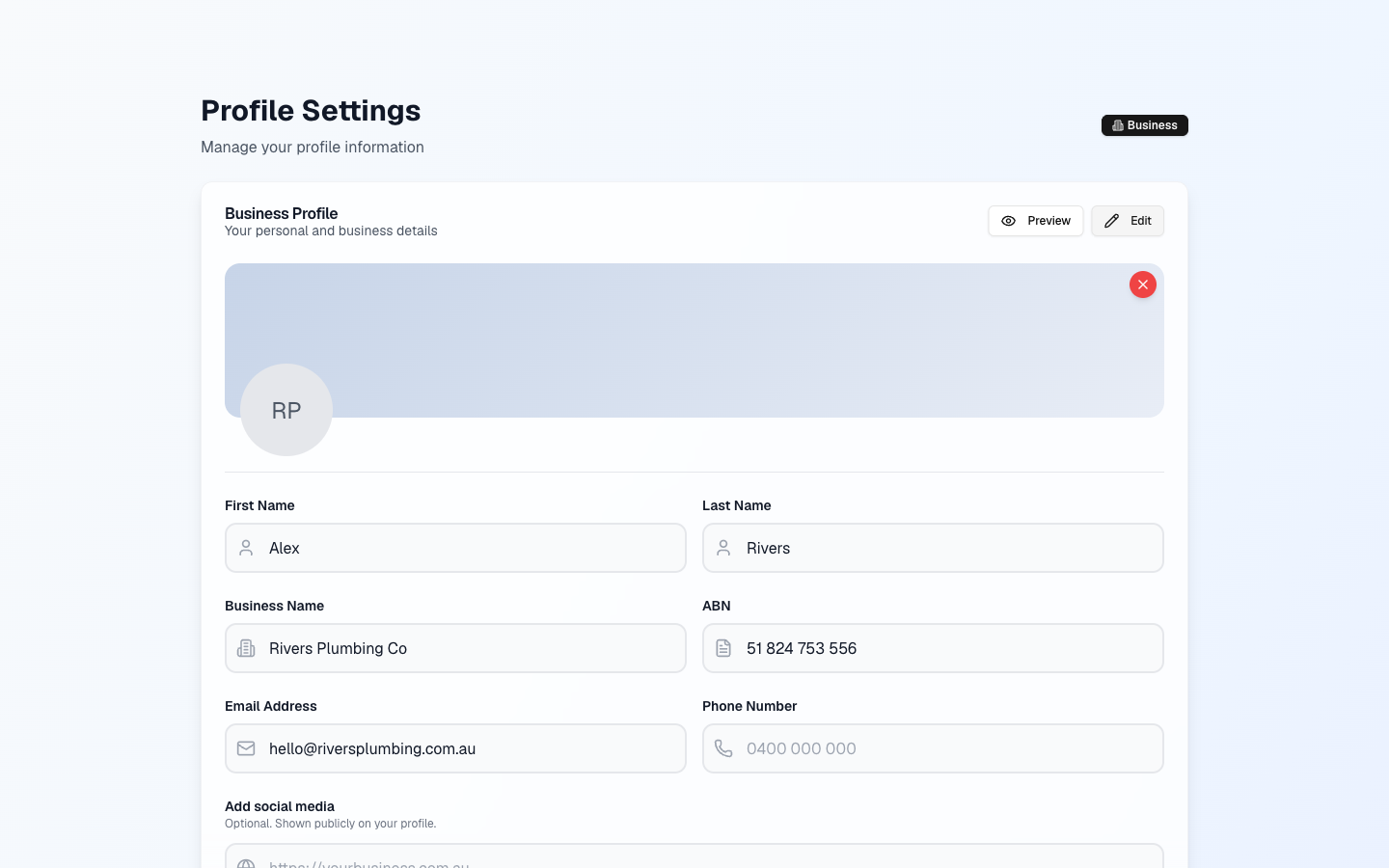
Your business profile
Profile Settings is the control panel for your business. Edit your name, ABN, contact info, bio, the trades and specialties you offer, service areas, portfolio gallery, and subscription, all from one page. Services are grouped by trade so your profile reads cleanly.
Setting up service areas
Service areas tell us where you'll travel. Drop a pin on the map and set a radius. Jobs from clients in that zone will match you. Your plan caps how many areas you can add.
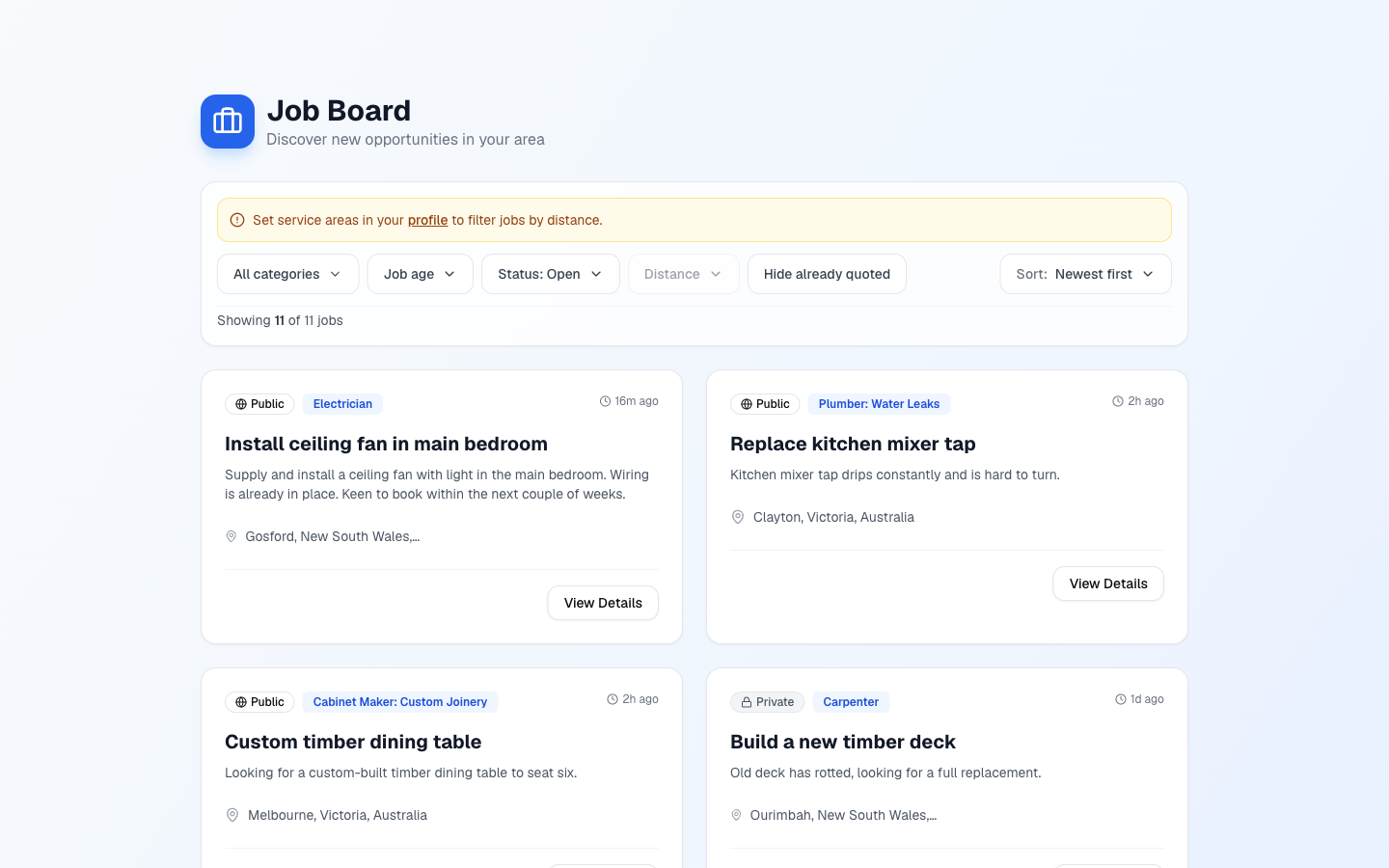
Browsing jobs
The Job Board (business portal) shows open jobs matching your trades and service areas. Use the filter bar (or the bottom-sheet filters on mobile) to narrow by category, distance, or recency. Click any job for the full brief and photos.
Jobs are marked Public or Private. On public jobs you can express interest to put yourself forward. Private jobs are read-only, the client reaches out first.
Get SMS alerts for new jobs
When a matching public job is posted near you, Chippa can reach you three ways: the in-app bell, an email, and a text message. The text lands the moment the job goes live, so you can be first to put your hand up.
Texts need a verified mobile. In Profile Settings, next to your phone number, you'll see a green Mobile verified badge or an amber Mobile not verified with a Verify nowlink. Tap it and we send a 6-digit code by SMS. Enter the code to confirm the number is yours. Only Australian mobiles can be verified, since a landline can't receive the code, and changing your number later clears the tick so you'll verify the new one.
SMS alerts are a Pro and Elitefeature. On a free plan, or with an unverified number, you still get every alert by in-app notification and email, just not the text. Once you're texting, reply STOP to any alert to turn the messages off.
New here? A one-time popup on sign-in nudges you to verify, with Verify now, Remind me later, or Don't show again. You can always verify from Profile Settings whenever you're ready.
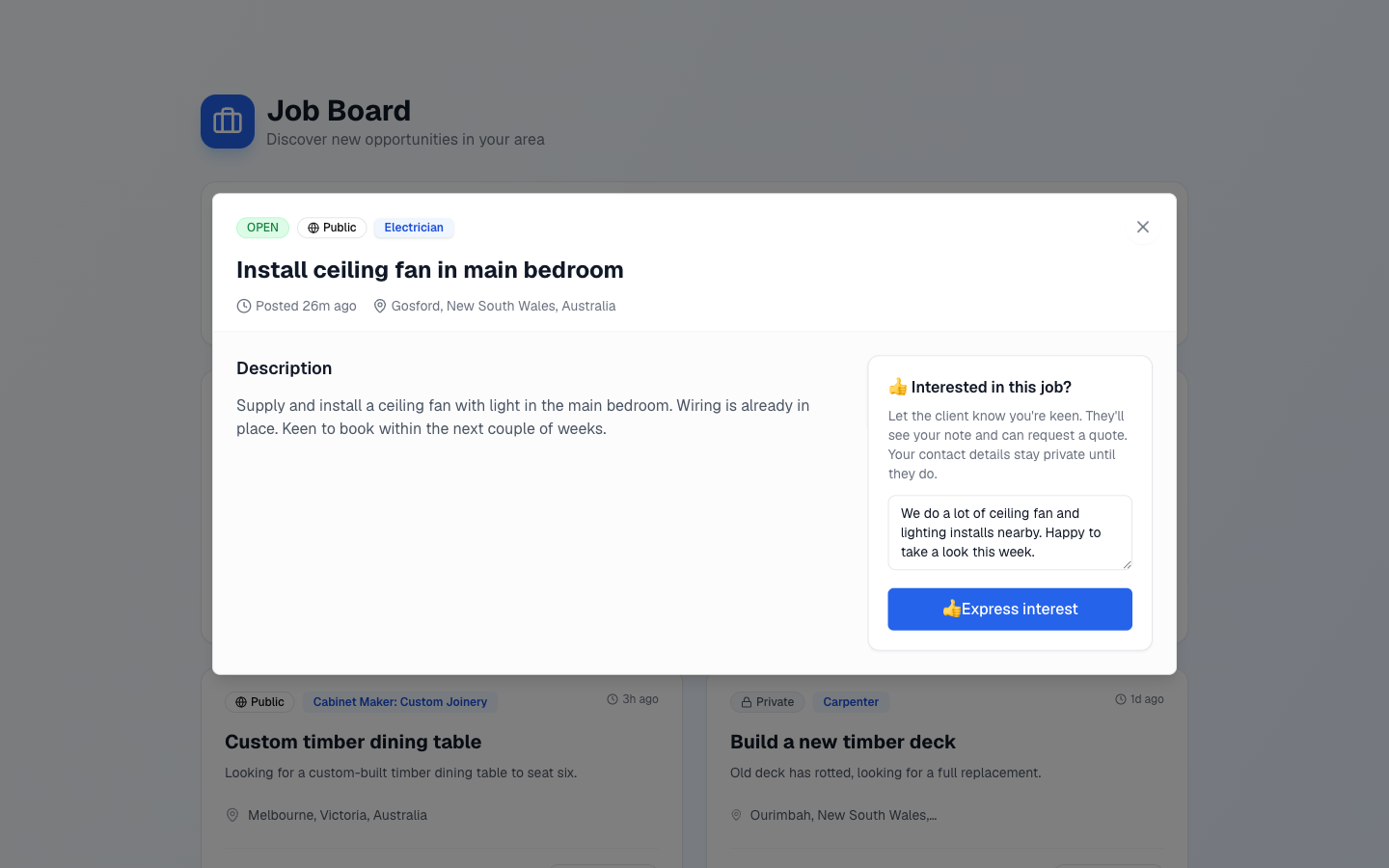
Expressing interest in jobs
See a public job you'd be great for? Tap Express Interestand add a short note on why you're a good fit. The client sees your interest on their job.
Interest is a soft nudge, not a quote. It puts you on the client's radar, but you only get their contact details once they request a quote from you. Other tradies never see that you expressed interest, and you can withdraw any time.
Responding to quote requests
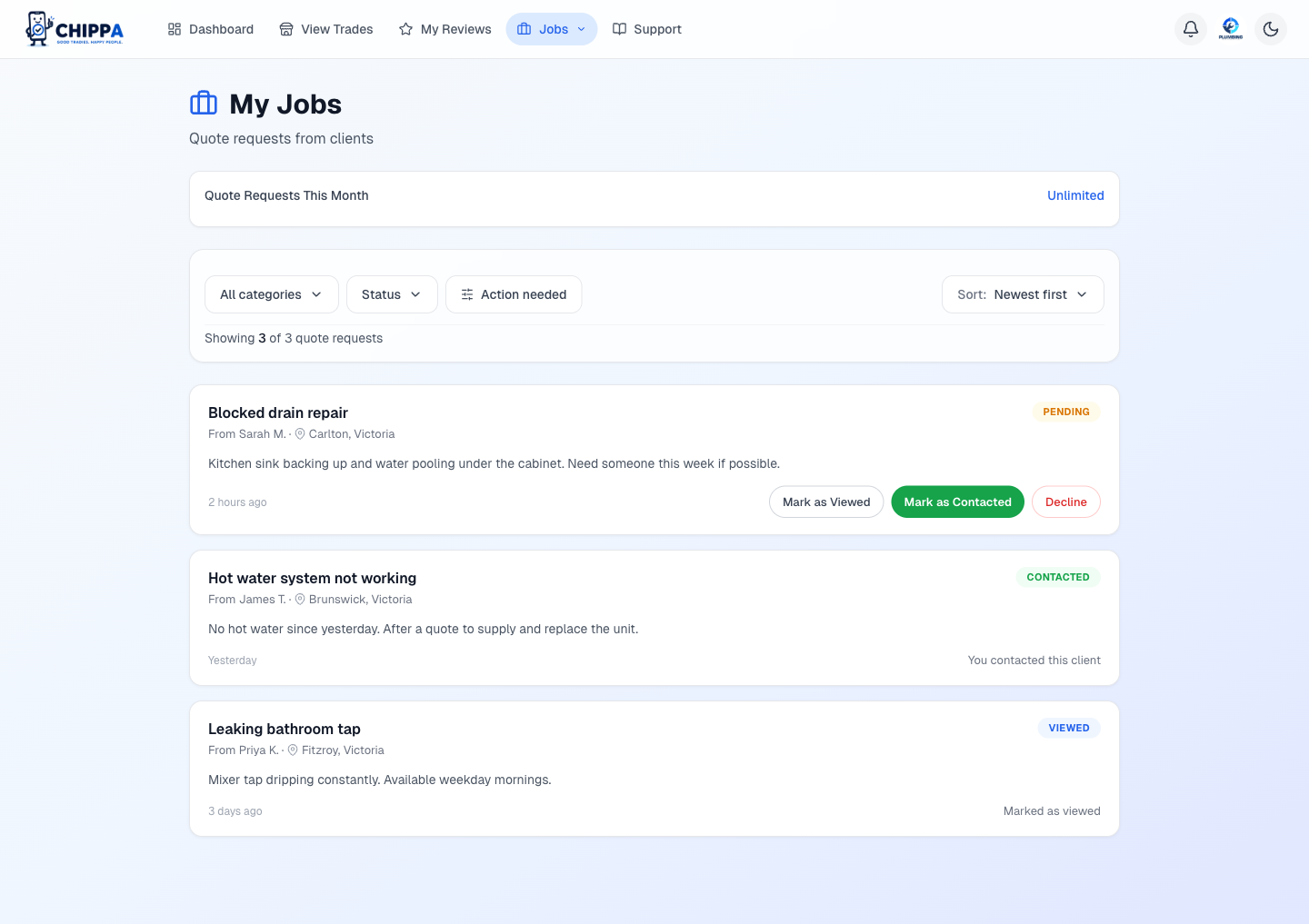
When a client sends you a quote request, it shows up in My Jobs and you get a notification with their message and suburb. To protect the client, their phone and email stay hidden until you click Accept & Reveal Contact Details on the request. Accepting marks it viewed and unlocks their contact so you can reach out directly. No middleman, no lead fees.
Managing reviews and disputes
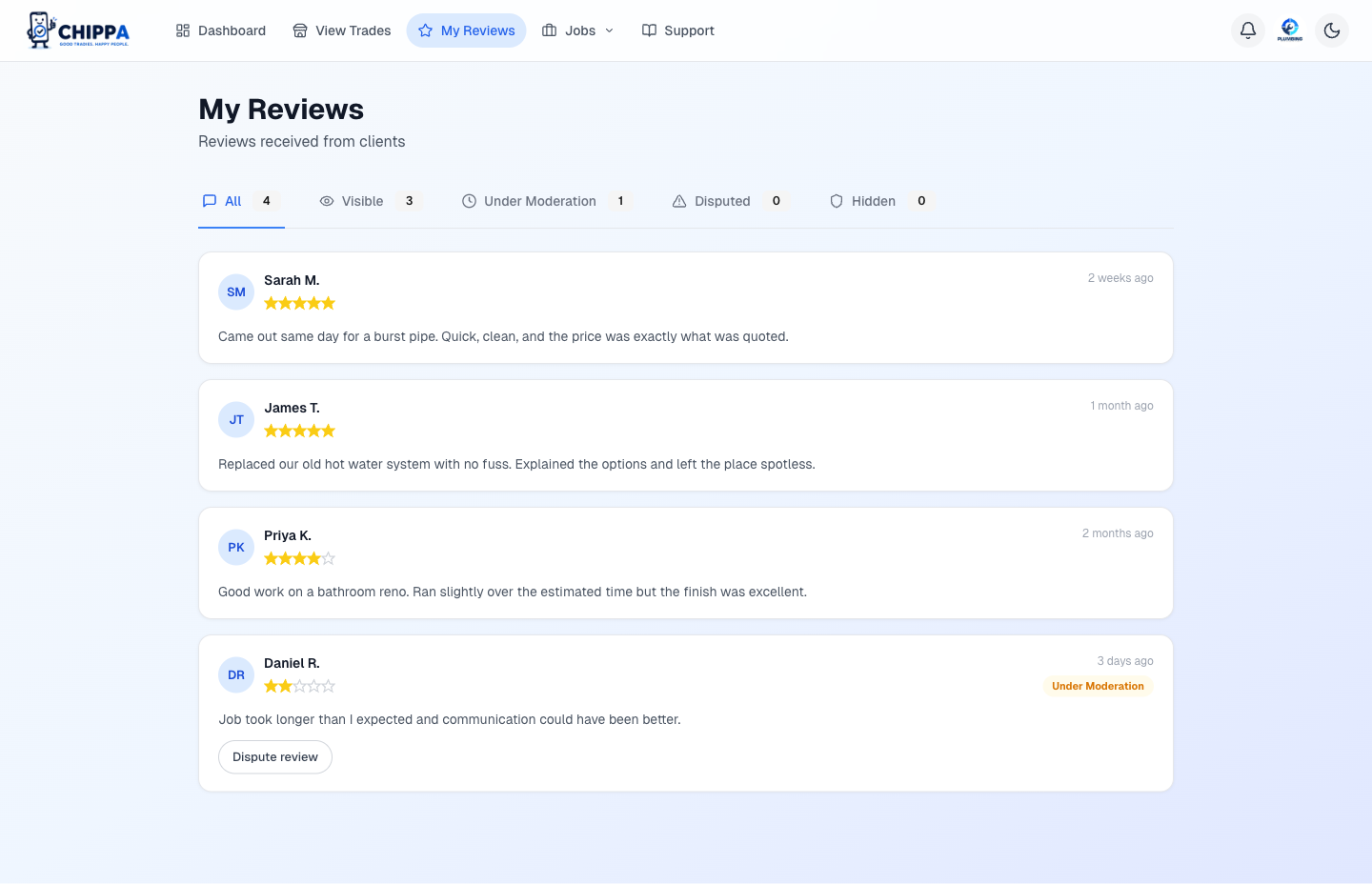
My Reviewsshows every review you've received. Reviews under 3 stars sit in moderation for 14 days. During that window you can dispute the review if it's unfair, and an admin will review it.
If your business is suspended
An admin can suspend a business profile if it breaches our terms. While suspended:
- Your profile is hidden from the marketplace, map search, and its public detail page. Customers can no longer find you or send you new quote requests.
- You can still sign in and manage your profile. Suspension hides your business, it does not lock your account.
- Your avatar in the top right gets a red outline and a Business suspended note in the menu, so you know the moment you log in. The same note appears in the mobile sidebar.
Suspension can also happen automatically. If your account is banned, your business is suspended at the same time. A banned account cannot sign in at all until an admin lifts the ban, and lifting the ban does not reactivate the business on its own, so an admin reactivates it separately.
Think a suspension is a mistake? Switch to Contact Usabove and send us the details. We'll take a look.
Dashboard & analytics
The dashboard surfaces activity for your role. Clients see job stats and quote activity.
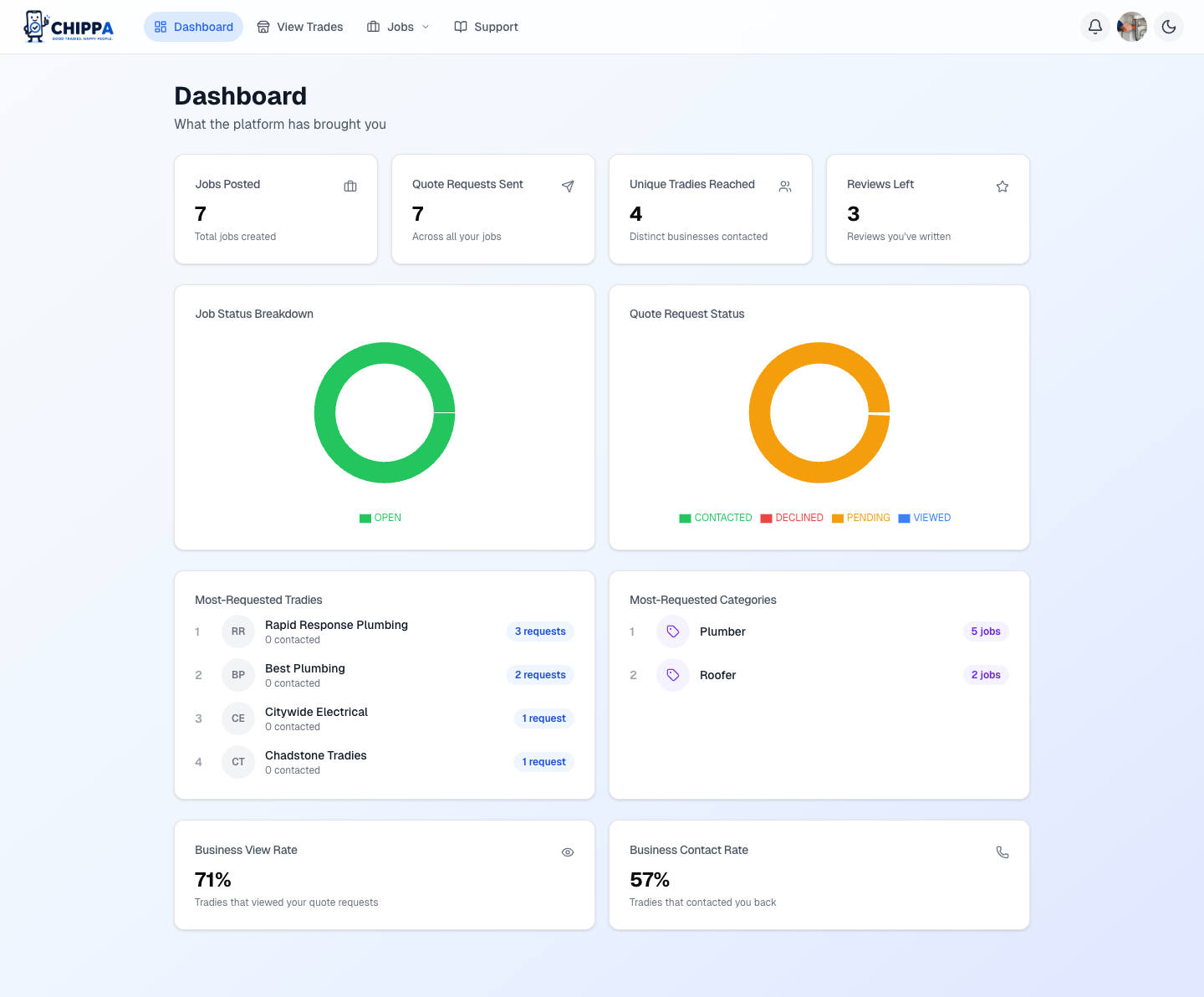
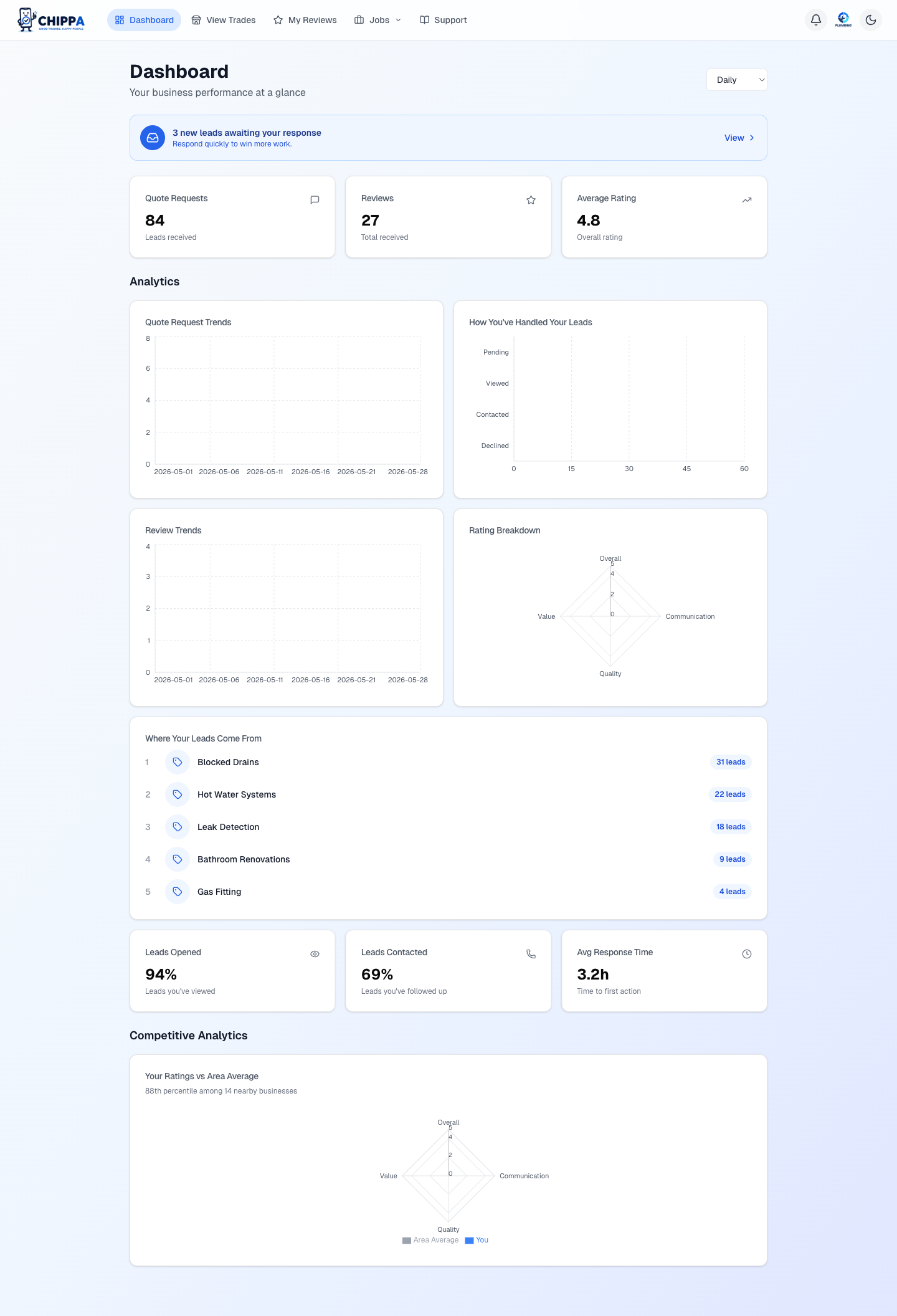
Businesses get quote trends, funnel stages, response rates, review breakdowns, and competitor benchmarks on higher plans.
Notifications
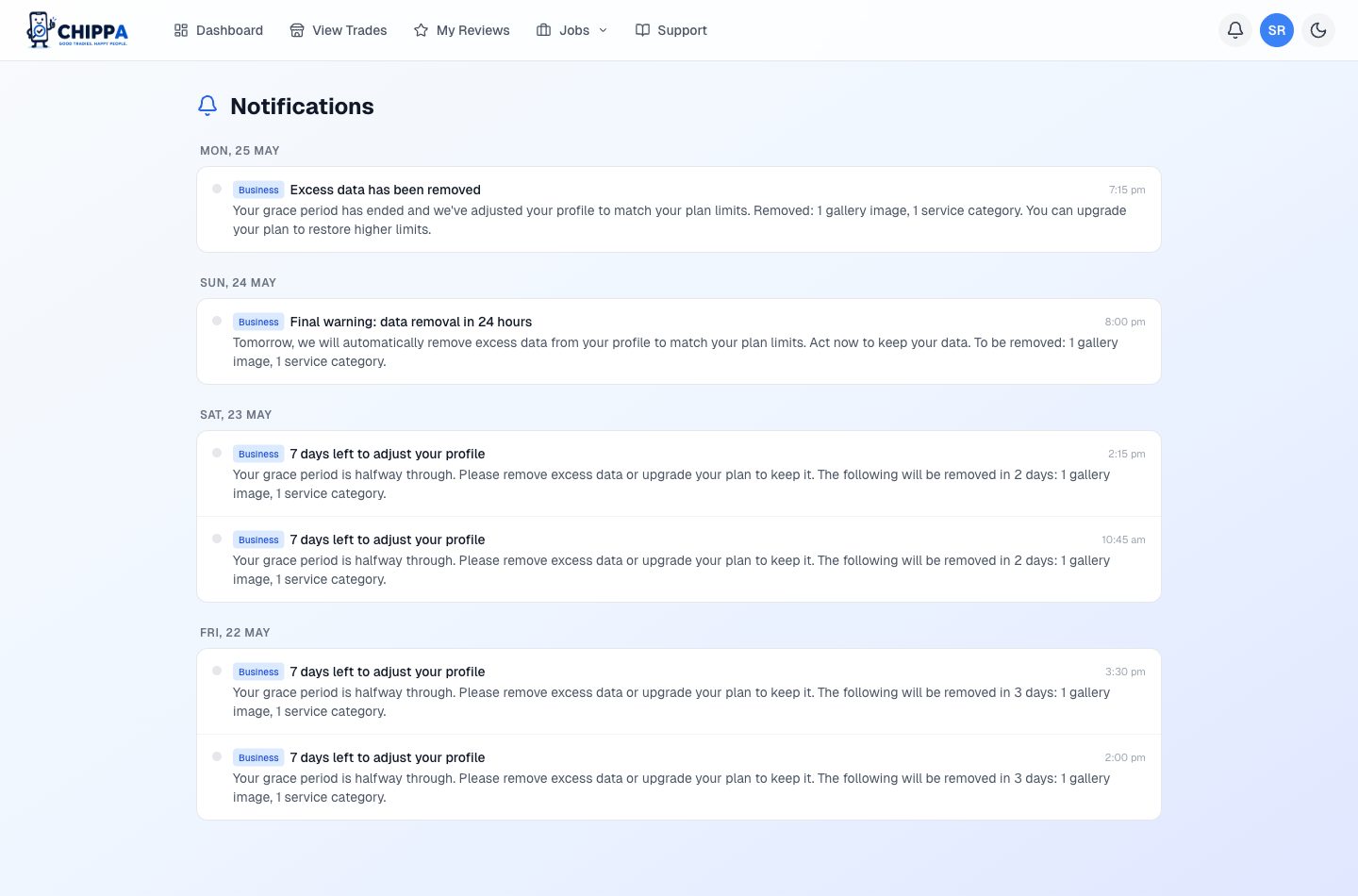
The bell icon in the header shows unread notifications. They stream in live. No refresh needed.
Portal switching
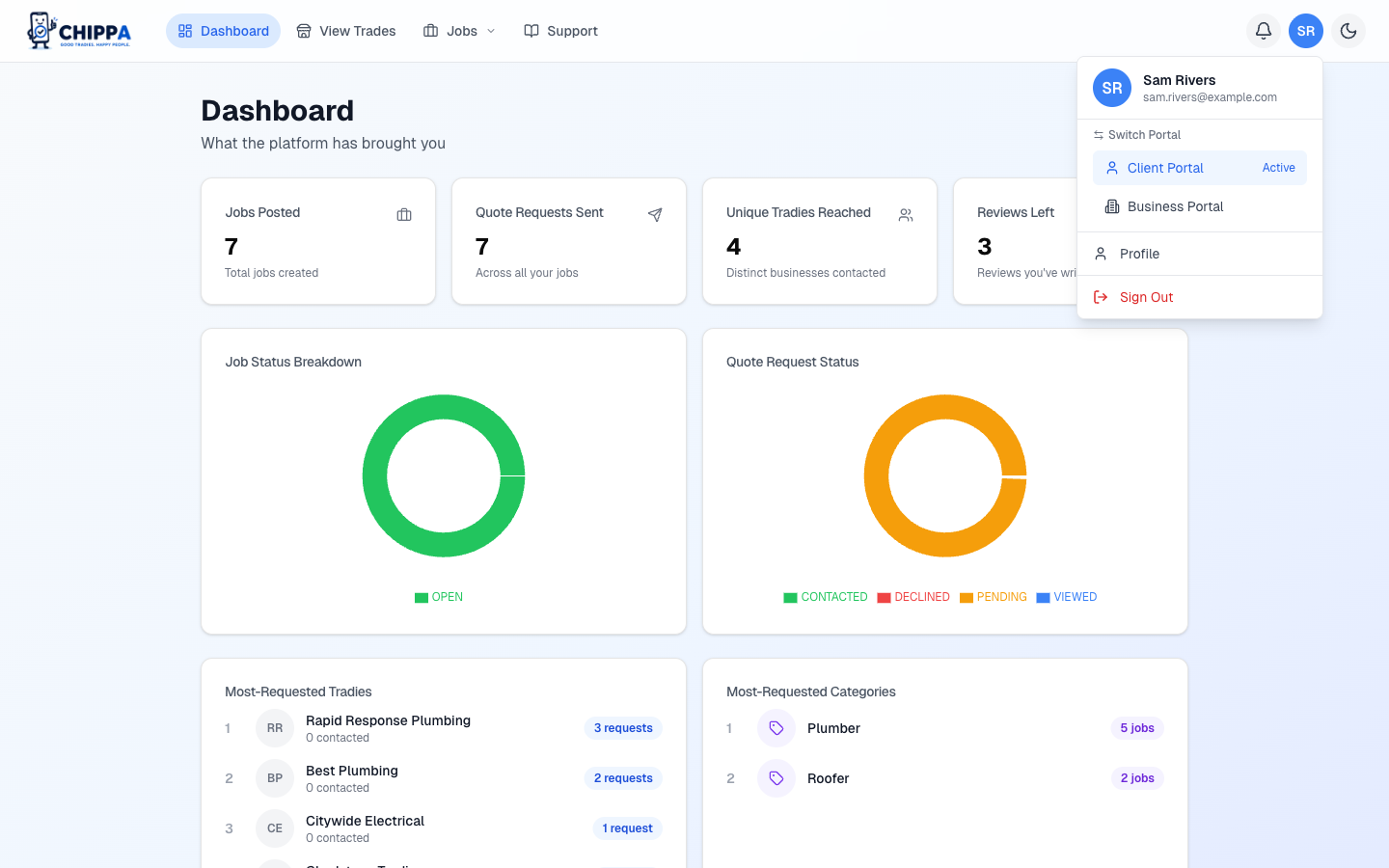
If you have both client and business roles, use the avatar menu in the header to switch portals. Each portal tailors the nav and dashboard to that role. On mobile the same switcher lives in the hamburger sidebar.
Dark mode
Toggle with the sun/moon icon in the header. Your preference is saved per device.
If your account is suspended
An account suspension is a full ban on the account, separate from a business profile suspension. While your account is suspended:
- You cannot sign in at all until an admin lifts the ban. This applies to both your client and business portals.
- If you run a business, its profile is suspended at the same time, so it is hidden from the marketplace, map search, and its public detail page.
- Lifting the ban does not reactivate a suspended business on its own. An admin reactivates the business separately, so your account can be active again while your business stays hidden a little longer.
Think a ban is a mistake? You do not need to sign in to reach us. Switch to Contact Usabove and send the details from the same email address on your account. We'll take a look.
Still have questions?
Switch to Contact Us to send a bug, feature idea, or general enquiry.